Git & CVS on XCode for project managers

Q: How to create local Git?

1. Either create an empty project, and choose create local git repository in the dialogs.

2. or call “git init" in the folder

Q: How to push to a remote Git?

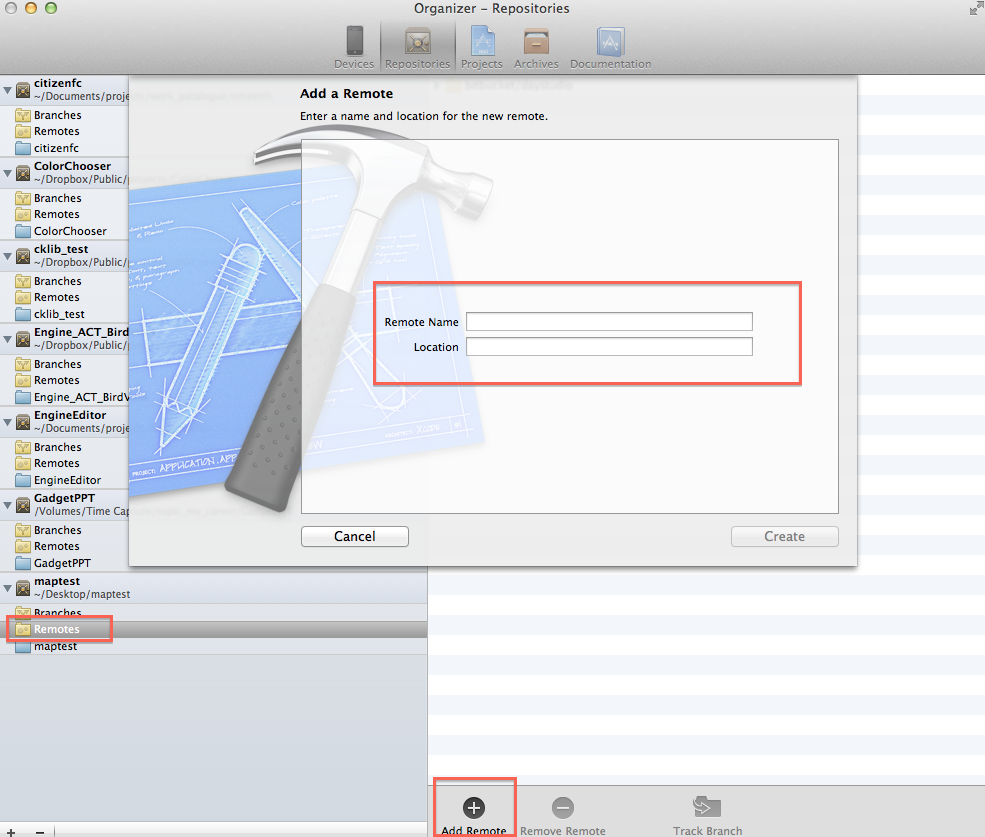
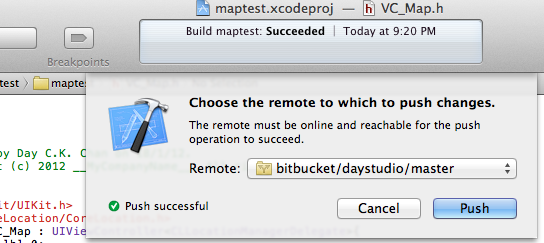
1. Add the Remote Git in Organizer Remote. (diagram attached)

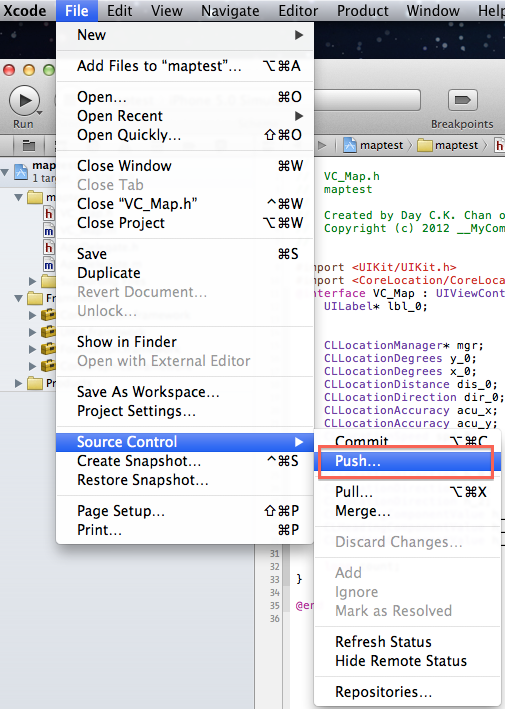
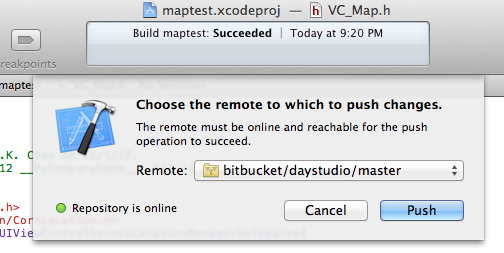
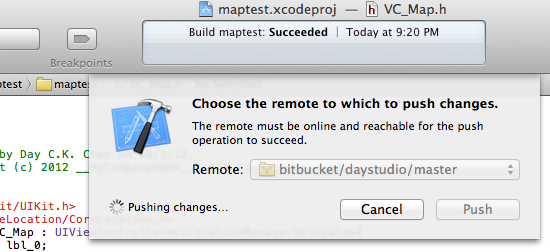
2. File -> Source Control -> Push. If the local git is not yet committed, Xcode will ask you to commit local git first.

That’s it.

Reference:

http://progit.org/book/

.

Java in XCode

Q: How to Create a Mac OS X Installer for a Java Application
http://www.centerkey.com/mac/java/

Q: How to integrate Java compilation into the XCode IDE?

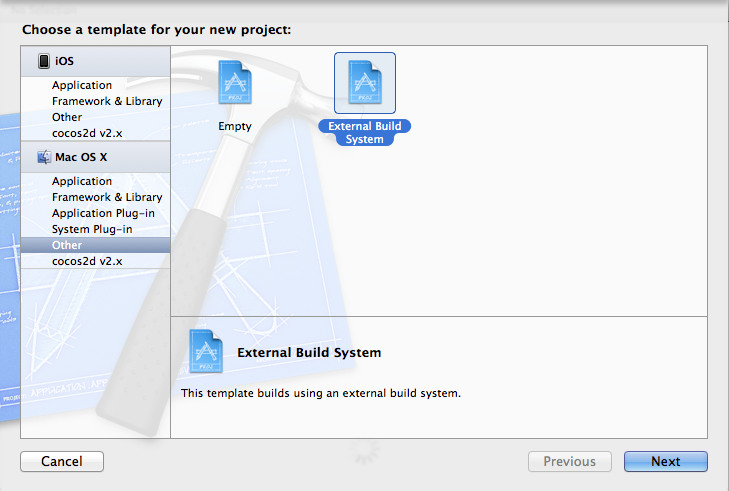
1. Create a project of “Mac OS X -> External Build System"

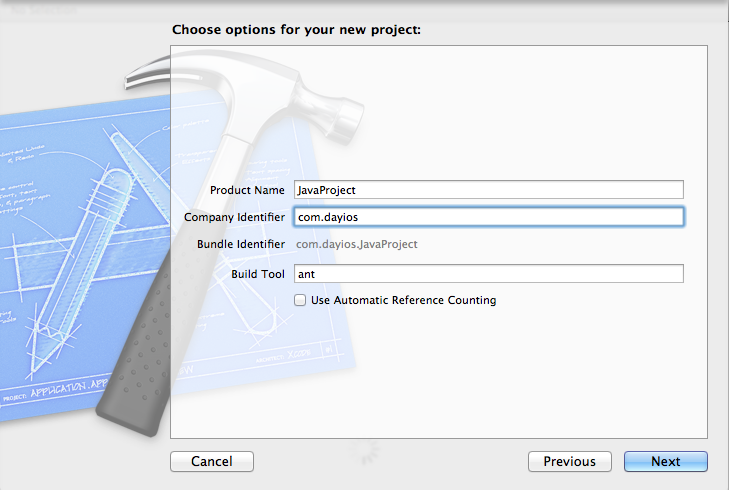
2. Input Product name, company identifier, don’t click “Use Automatic Reference Counting". Enter “ant" into “Build Tool".

3. Create or check your build.xml. This is part of Ant technology, please refer to Ant documents or tutorial online.

4. Copy your source, resource, build.xml into your folder. Remember put the build.xml into the project root path (of you can reference it with folder path later)

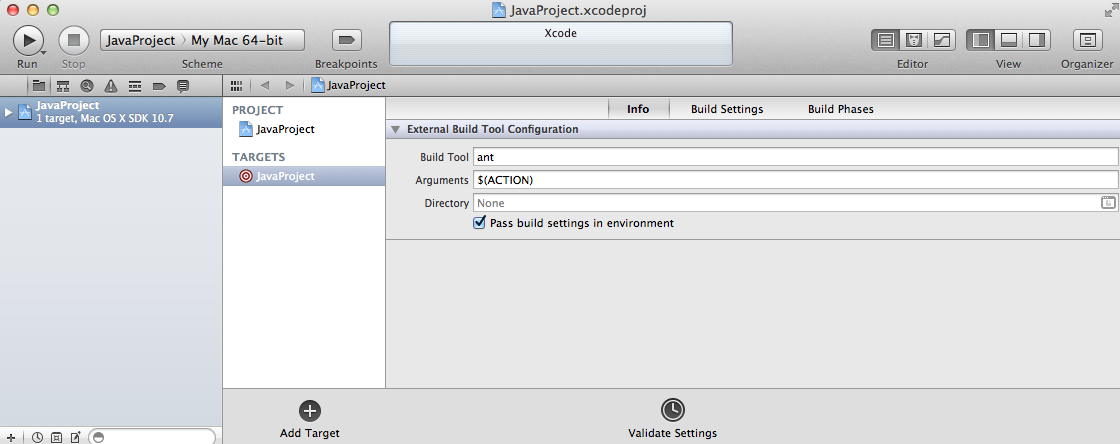
5. That’s it. Check with Build Scheme and Build Target in XCode, you will see you can Build (but not Run) with the Target. Use Command-B as hotkey to build.

Q: How to tackle the warning of “warning ‘includeantruntime’ was not set , defaulting to build.sysclasspath=last; set to false for repeatable builds."?

1. Check with your javac in build.xml. Add the attribute “includeantruntime" in the line: e.g. <javac srcdir="src" destdir="bin" includeantruntime="FALSE"/>

That’s it.
Happy XJavaing~

Push Notification – Reflections

Good reference

http://maniacdev.com/2011/05/tutorial-ios-push-notification-services-for-beginners/

Some notes

1. If get some error like “no valid ‘aps-environment’ entitlement string", remove all Provision Profile, on both Apple’s portal and local, re-create them, and refresh in Organizer. Remember to do all these AFTER THE PUSH HAS BEEN ENABLED.

2. If using Urban Airship for testing purpose, and get any error like “Certificate does not contain the private key": import the key downloaded from Apple’s Portal, and then re-export the same key from your Keychain Access. Save the format as .p12 extension, proved work.

Running on older devices: issue of not running on older devices

If you compile using Xcode 4.2, and default-ed iOS 5.0, you will find that when you come to the scenario which you need to run on earlier devices, e.g. iPhone 3GS, iPod 2/3, i.e. at most iOS 4.2.1. The code will be compiled and run, but nothing happen, the app didn’t run, but the status shown on Xcode is “Finished Running [app] on [device]".

To solve this, you need to change two field.

1. Build Settings -> Search “Architectures". Default is “armv7″. You should add a field and type in “armv6″ (which is for earlier devices.)

2. Open your Info.plist file. Change the “Required device capabilities" to armv6, or just remove it.


Build Number

Incorporate Build Number into your codes.

This is a handy tool when your client / tester / user / boss want to tell which version are they using on their devices.

1. Initiate your Bundle Version in your Info.plist file to some integer. e.g. 100

2. add script to Build Phases, put it before Copy Bundle Resources (or earlier)

3. put these script into the project. Notice the path settings and file settings.
build_num =$(/usr/libexec/PlistBuddy -c "Print CFBundleVersion" ${PROJECT_DIR}/App-Info.plist)
build_num=$(($build_num + 1))
/usr/libexec/PlistBuddy -c "Set :CFBundleVersion $build_num" ${PROJECT_DIR}/App-Info.plist

4. Get that number as a NSString in your code using this:

NSString* build_number = [[NSBundle mainBundle] objectForInfoDictionaryKey:@"CFBundleVersion"];


Enhanced from reference.

Reference: http://blog.jayway.com/2011/05/31/auto-incrementing-build-numbers-in-xcode/

Step by Step: Auto-conversion for ARC

Do auto-conversion for ARC:

1. Open “XCode -> Preferences", tab “General". Check “Continue building after errors" (diagram 1)

2. Open “Edit -> Refactor -> Convert to Objective-C ARC…" (diagram 2)

3. If there is any “ARC readiness issues", fix it, until no more ARC readiness issues.

4. Do step 2 (conversion) again.

5. Confirm the comparison page. (diagram 3-5)

6. Finish. You may Build your project again and see the ARC conversion is done.

ARC error to the const void **

Difficult ARC error:


NSDictionary *var_01;
SecItemCopyMatching((__bridge CFDictionaryRef)var_02, (CFTypeRef *)&var_01);

Error: Cast of an indirect pointer to an Objective-C pointer to ‘CFTypeRef ‘ (aka ‘const void **’) is disallowed with ARC

Solution – don’t use (NSDictionary*)

CFDataRef var_01;
SecItemCopyMatching((__bridge CFDictionaryRef) var_02, ( CFTypeRef*) &var_01);
NSData* passDat=(__bridge_transfer NSData*)var_01;