Running on older devices: issue of not running on older devices

If you compile using Xcode 4.2, and default-ed iOS 5.0, you will find that when you come to the scenario which you need to run on earlier devices, e.g. iPhone 3GS, iPod 2/3, i.e. at most iOS 4.2.1. The code will be compiled and run, but nothing happen, the app didn’t run, but the status shown on Xcode is “Finished Running [app] on [device]".

To solve this, you need to change two field.

1. Build Settings -> Search “Architectures". Default is “armv7″. You should add a field and type in “armv6″ (which is for earlier devices.)

2. Open your Info.plist file. Change the “Required device capabilities" to armv6, or just remove it.

 

Build Number

Incorporate Build Number into your codes.

This is a handy tool when your client / tester / user / boss want to tell which version are they using on their devices.

1. Initiate your Bundle Version in your Info.plist file to some integer. e.g. 100

2. add script to Build Phases, put it before Copy Bundle Resources (or earlier)

3. put these script into the project. Notice the path settings and file settings.
build_num =$(/usr/libexec/PlistBuddy -c "Print CFBundleVersion" ${PROJECT_DIR}/App-Info.plist)
build_num=$(($build_num + 1))
/usr/libexec/PlistBuddy -c "Set :CFBundleVersion $build_num" ${PROJECT_DIR}/App-Info.plist

4. Get that number as a NSString in your code using this:

NSString* build_number = [[NSBundle mainBundle] objectForInfoDictionaryKey:@"CFBundleVersion"];


Enhanced from reference.

Reference: http://blog.jayway.com/2011/05/31/auto-incrementing-build-numbers-in-xcode/

Step by Step: Auto-conversion for ARC

Do auto-conversion for ARC:

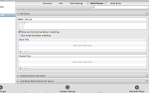
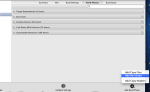
1. Open “XCode -> Preferences", tab “General". Check “Continue building after errors" (diagram 1)

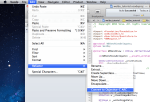
2. Open “Edit -> Refactor -> Convert to Objective-C ARC…" (diagram 2)

3. If there is any “ARC readiness issues", fix it, until no more ARC readiness issues.

4. Do step 2 (conversion) again.

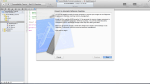
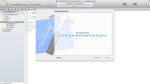
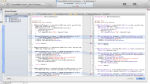
5. Confirm the comparison page. (diagram 3-5)

6. Finish. You may Build your project again and see the ARC conversion is done.

ARC error to the const void **

Difficult ARC error:


NSDictionary *var_01;
SecItemCopyMatching((__bridge CFDictionaryRef)var_02, (CFTypeRef *)&var_01);

Error: Cast of an indirect pointer to an Objective-C pointer to ‘CFTypeRef ‘ (aka ‘const void **’) is disallowed with ARC

Solution – don’t use (NSDictionary*)

CFDataRef var_01;
SecItemCopyMatching((__bridge CFDictionaryRef) var_02, ( CFTypeRef*) &var_01);
NSData* passDat=(__bridge_transfer NSData*)var_01;

Android Solutions – INSTALL_FAILED_INSUFFICIENT_STORAGE

Solutions to INSTALL_FAILED_INSUFFICIENT_STORAGE or Solution to compile log such as: ======================================================================== Failed to install xxxx.apk on device ’emulator’: No space left on device com.android.ddmlib.SyncException: No space left on device Launch canceled! ======================================================================== Doc location: http://stackoverflow.com/questions/4709137/solution-android-install-failed-insufficient-storage-error